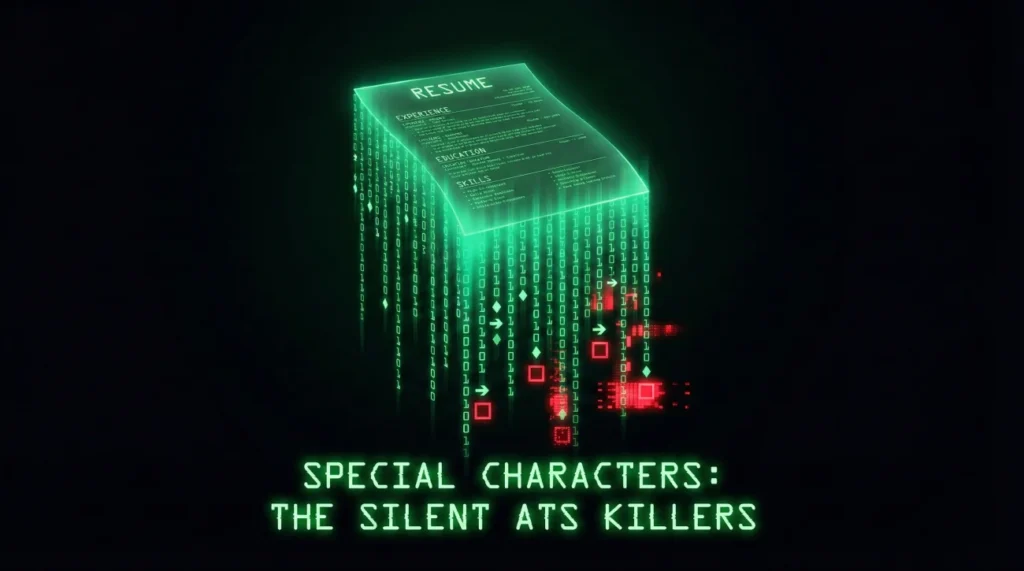
- If your bullets or symbols turn into squares, it is usually a character encoding or font substitution problem, not “bad content.”
- Most ATS “weird parsing” comes from invisible spacing, tabs, smart quotes, ligatures, and copy paste artifacts, not just fancy icons.
- Use a short safety routine: standard bullets, standard punctuation, left alignment, and a plain text paste test before you submit.
Why Special Characters Quietly Break ATS Parsing
I still remember the look on Nikita’s face when she showed me her resume and asked: “Why does it look perfect on my laptop, but turns into weird squares when I paste it into an application?”
She was not trying to be fancy. She had a clean layout, strong metrics, and a calm tone. The only “design” choice she made was switching bullets from a normal dot to a diamond and adding a few arrows to highlight impact. That was enough to create a messy copy paste result, and the autofill fields in the ATS started doing strange things: job titles drifted into the wrong boxes, bullets turned into little boxes, and her keywords got chopped up.
This is exactly what special characters ATS resume issues look like in real life: Not a dramatic rejection message, not a pop up that says “You failed ATS,” just tiny failures that make your application data look incomplete or sloppy inside the system.
Now, I’ll show you which symbols are usually safe, which ones are risky, and the “weird spacing” traps that most generic advice never mentions. You will also get a quick cleanup routine that keeps your resume readable for humans.
What Actually Goes Wrong When an ATS Meets Symbols
Let’s separate two things people mix up.
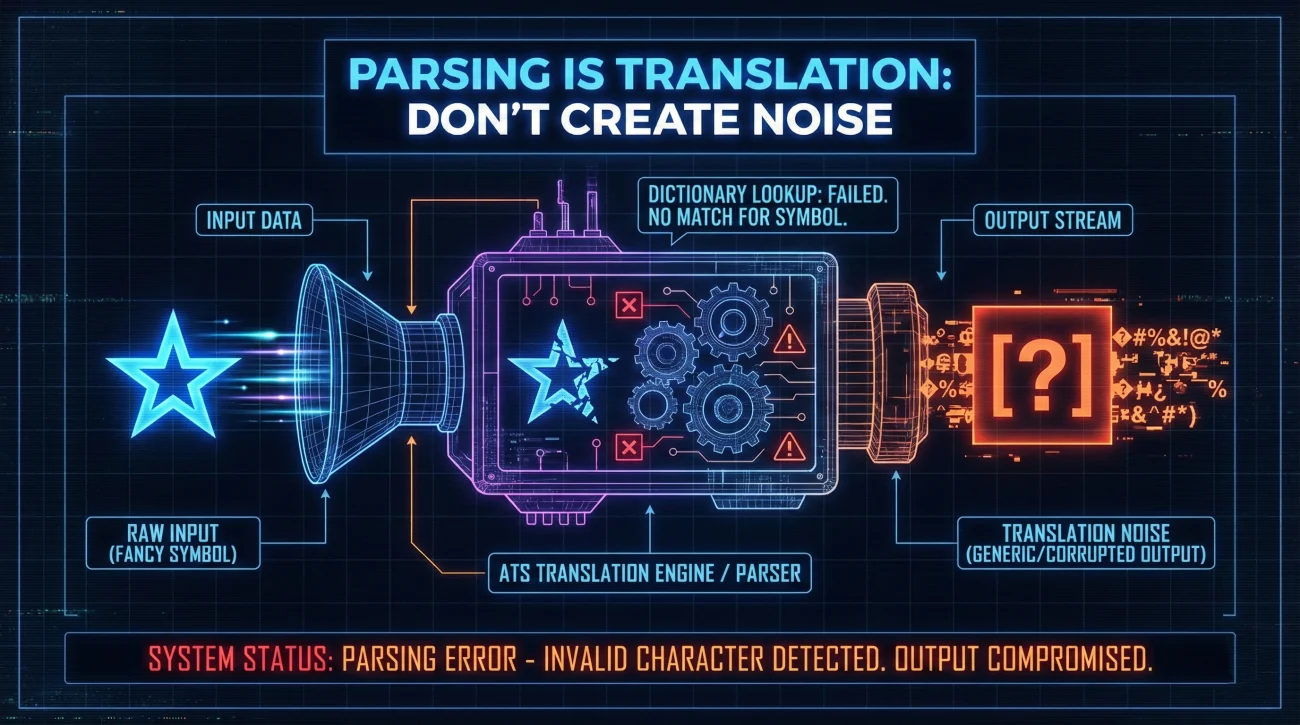
First: A recruiter can often open your original file and read it just fine. Second: The ATS parser is trying to extract your resume into structured fields. That extraction is where symbols and spacing matter, because the parser is converting your document into text and then mapping that text into sections.
When a character is not recognized the way you expect, the system does not “think harder.” It substitutes. That is when you see:
- Bullets that become empty squares or question marks.
- Hyphen like characters that turn into odd spacing or broken words.
- Section lines that swallow nearby text, making one job look like it belongs to another.
- Dates that drift into the wrong position because alignment used tabs or hidden stops.
Key Point: Most parsing problems are translation problems. Your resume is being converted, and symbols that are harmless visually can become noise during conversion.
One more thing I wish more articles admitted: Not all ATS behave the same. Some handle Unicode cleanly, some are pickier, some depend on the file type, and some depend on how the employer configured their system. That is why the safest approach is not chasing the “perfect” symbol. It is choosing a small set of characters that travel well across systems.
Safe Bullet Symbols and Risky Ones That Cause Weird Squares
If you want the short version: The closer your bullet and symbols are to “plain text,” the less likely they break.
That does not mean your resume has to look ugly. It means you should avoid characters that rely on special fonts, icon sets, or decorative glyphs that do not translate cleanly.
| Use This | Avoid This | Why It Breaks | Safer Swap |
|---|---|---|---|
| • Standard bullet | ◆, ◇, ▸, ▪ | Often font dependent, can substitute to squares | Switch to • or a simple hyphen |
| – Hyphen bullet | →, ➜, ⇢ | Arrows can become odd characters in plain text | Use “Results:” as a label instead |
| , . ( ) / + % $ | Emoji and icons | Icons are not text, they are visual glyphs | Write the meaning as words |
| Simple colon and pipes | Decorative separators | Some separators create spacing artifacts | Use commas or parentheses |
💡 Pro Tip: If you are unsure whether a bullet is safe, paste your resume into a plain text editor. If the bullets stay readable and consistent, you are usually fine.
Here is the pattern I use when I am cleaning a resume for a candidate who loves “visual cues.” We keep the cue, but we express it with text instead of a fragile symbol.
◆ Increased retention 18% ➜ Built onboarding playbook
▸ Led migration to AWS | Reduced costs $120K
• Increased retention by 18% (Built onboarding playbook)
– Led migration to AWS, reduced costs by $120K
Notice what changed. The achievements did not lose energy. We removed the fragile pieces and kept the meaning in words, numbers, and structure.
The Real Villain: Weird Spacing and Invisible Characters

Now for the part that most “symbol” articles skip: Spacing can break parsing more than bullets.
I saw this with a candidate named Hugo who had a simple resume, no icons, no graphics, and still got chaotic autofill. The issue was not his bullet symbol. It was the way he aligned dates: He used tabs and manual spacing so the dates snapped to the right margin. Visually it looked professional. In plain text, it turned into unpredictable gaps and weird line breaks.
⚠️ Warning: Tabs, multiple spaces, and hidden alignment tricks can look “clean” to humans but create unpredictable text flow when a parser extracts content.
Here are the invisible characters and spacing traps I see most often in modern resumes:
- Tabs and tab stops: Used to align dates or locations. In extracted text, tabs can collapse or expand unpredictably.
- Non breaking spaces: Common when you copy text from PDF previews or certain viewers. They look like normal spaces but behave differently.
- Smart quotes: Curly quotes can turn into strange marks when pasted into systems that expect plain quotes.
- Ligatures: Some fonts combine letters (like “fi”) into a single glyph. In extraction, that glyph can become a missing or odd character.
- Soft hyphens: Hidden hyphens inserted for line wrapping can show up as random breaks in extracted text.
When I explain this to people, they usually say: “But I never typed invisible characters.” That is true. Most of them arrive through copying, pasting, or using tools that export text with extra formatting under the hood.
“I copied my bullets from a template and everything looked fine. Then the application preview showed black squares where my bullets were.”
That sentence comes up a lot, especially from candidates who built their resume in a design heavy tool, exported to PDF, then copied lines back into Word or Google Docs to “fix” it. That back and forth is where the hidden stuff sneaks in.
A Cleanup Routine That Keeps Your Resume Readable
Here is the routine I use when a resume looks great but the system keeps mangling it. The goal is not to flatten your personality. The goal is to make your content travel safely.
Step 1: Normalize bullets and separators
Pick one bullet style for the whole document. If you want a modern look, use the standard bullet or a simple hyphen. Do not mix bullets, arrows, and decorative symbols across sections.
If you need to separate items in a line, use commas or parentheses instead of decorative dividers. Simpler punctuation tends to survive extraction better.
Step 2: Replace alignment tricks with structure
Instead of pushing dates with multiple spaces or tabs, use a consistent layout that does not depend on hidden spacing. In practice, that means left aligned text and clear line breaks.
If you are worried about readability, shorten the line. A clean two line entry often reads better than a single line that relies on spacing tricks.
Step 3: Run a “plain text” pass
Copy the full resume and paste it into a plain text editor. You are looking for signs like:
- Bullets turning into boxes or question marks.
- Words glued together or strangely spaced.
- Random symbols appearing near bolded terms.
- Lines breaking in the middle of a job title or company name.
When you spot an issue, go back to your source document and replace the problematic character with a simpler version. This is the fastest way to isolate the real culprit.
- ✅ If you only fix three things: Standard bullets, remove tabs, and replace smart quotes.
- 📌 If you do one extra: Check bolded technology names, those are where odd glyphs often show up.
- 🧠 If you want to be thorough: Re type suspicious lines instead of repeatedly copying them.
A 60 Second Self Test Before You Submit
What is the quickest way to spot symbols on resume ATS issues without special tools?
Do a paste test and a scan for consistency. It sounds almost too simple, but it catches the majority of problems I see in real applications.
- Copy your full resume.
- Paste into a plain text editor.
- Scroll fast and look for broken bullets, strange boxes, and odd spacing.
- Search for double spaces and replace them with single spaces.
- Check any line where you used a special bullet, arrow, or copied a symbol from a template.
❌ Note: If your bullets look fine but your dates and locations shift in weird ways, tabs are usually the hidden cause.
Final
I do not think a resume should be punished for trying to be readable. A clean document with a little structure is a good thing.
But when symbols and spacing become fragile, the resume stops traveling well. And in modern hiring systems, travel matters. Your information needs to land in the right fields, your keywords need to stay intact, and your experience should not look scrambled just because a character did not translate.
If you keep it simple, you do not lose personality. You gain reliability. That is the quiet advantage behind special characters ATS resume hygiene: Your content shows up the way you intended, even when the system is doing its own conversion in the background.
❓ FAQ
🧩 Which bullet symbol is the safest for ATS parsing?
Most of the time, the standard bullet or a simple hyphen is safest. The real win is consistency: One bullet style across the whole resume, no mixing.
🧼 Are emojis ever okay on a resume?
I would not use them in bullets or section labels. Emojis can break extraction, and even when they do not, they often look unprofessional in application previews.
📄 My resume looks fine, but the application autofill is messy. Why?
That is classic parsing translation trouble. The most common causes are tabs, hidden spacing, smart quotes, or bullets that depend on a specific font.
🧠 Do special characters get you rejected automatically?
Not automatically. The bigger risk is silent damage: missing keywords, scrambled fields, or a profile that looks incomplete inside the system.
🛠️ What is the fastest fix if bullets turn into squares?
Replace decorative bullets with a standard bullet or a hyphen, then repeat the plain text paste test. If the squares persist, suspect the font or a copied line that contains hidden characters.
🔎 How do I know if I have invisible characters in my resume?
If you paste into plain text and see odd spacing, random marks, or broken words, you probably do. Re type the suspicious lines and remove tabs where you used them for alignment.
⚠️ Disclaimer: ResumeSolving provides resume, cover letter, job search communication, and career transition guidance for informational purposes only. Hiring practices vary by employer, role, location, industry, and individual circumstances. We do not guarantee interviews, job offers, ATS results, or other outcomes. Verify employer requirements directly and follow applicable laws and workplace policies. For sensitive situations, use only information you are comfortable disclosing and keep all statements accurate.